Project settings and integrations
All sections of the Settings page — General (data, Search Console / GA4 / Matomo integrations, status, deletion), Keywords (addition, management, GSC suggestions) and Prompt AI (monitored prompts table with frequency, 5 models and credits, candidates to approve and the tabs for finding new prompts).
The Settings page collects everything related to the configuration of an individual project. Reach it from the project sidebar → Settings. It’s organised in three tabs at the top: General, Keywords (counter showing active count), AI Prompts (counter showing active count).
The project’s PDF report isn’t generated from here but from the Report page in the sidebar (see Creating branded reports).
If the project is paused, a Paused pill appears next to the title.
General tab
⚙️ Project data
Edit the project Name and the monitored Domain, the default Target country and SERP language for keywords, the YouTube channel (for YouTube positions) and the backlink limit.
- The domain must be entered without
http://orwww.(e.g.example.com) - Changing the domain is not recommended after the first few days: you lose the ranking history for the old domain (if really needed, contact support)
- Maximum backlinks to monitor (below Country and Language): how many of the site’s backlinks to keep track of, the best by Domain Rank. Empty = 1,000. The plan’s backlink quota is shared across all projects in the organization: the hint under the field shows how many are left; you can raise the limit on a site with thousands of links (within the quota) and lower it on a small one, freeing up room for the others immediately. If the other projects have used up the quota, the project’s backlink monitoring stays paused and the Backlinks page tells you so. Details in Backlink monitoring →.
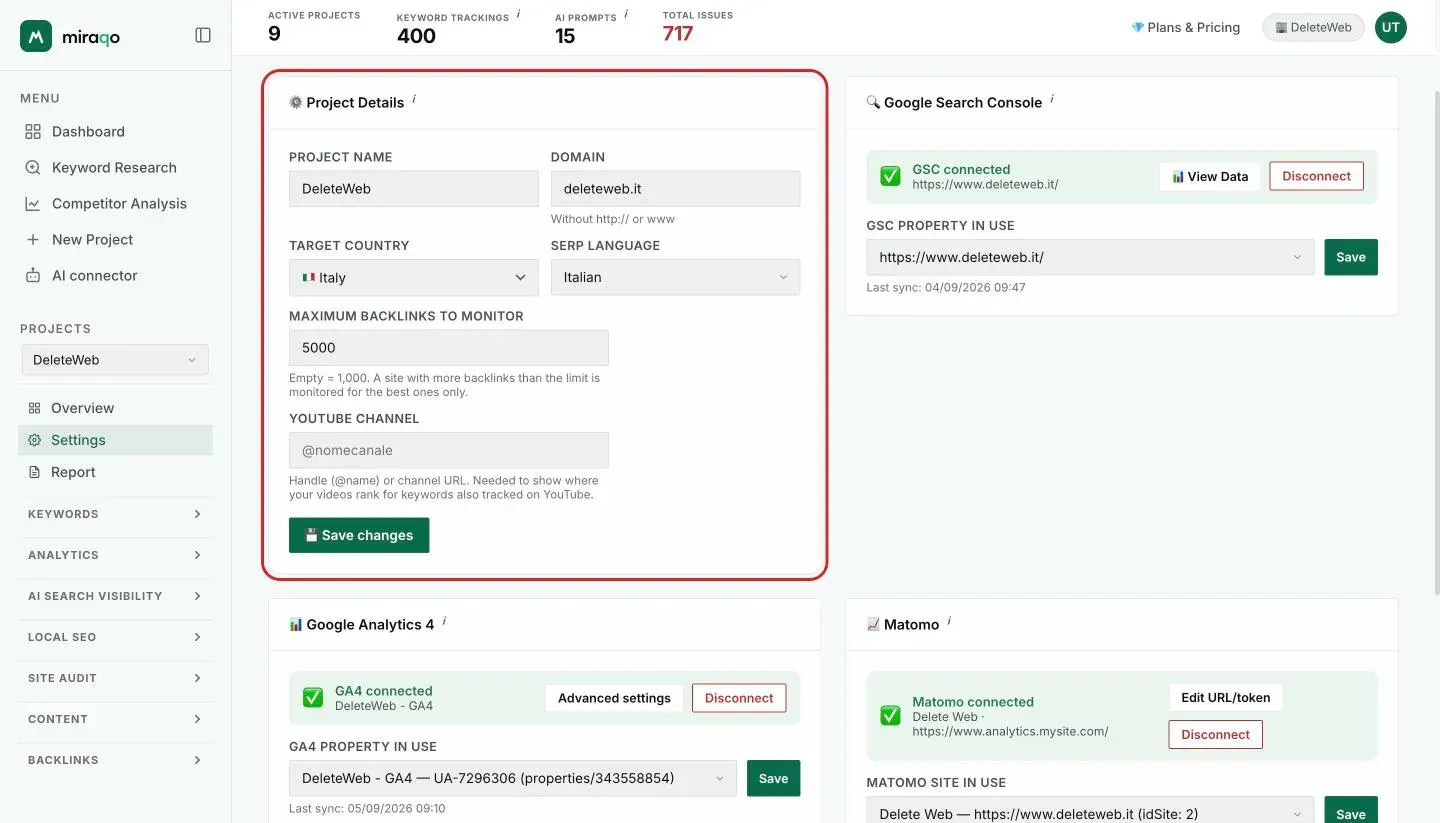
🔍 Google Search Console
Connect the Google account to import real clicks, impressions, CTR and average position for each keyword and page. See Connect Google Search Console.
When the connection is active:
- The selected GSC property appears + 📊 View Data button + Disconnect
- If you have multiple properties, you can switch them on the fly from the dropdown
- The date of the last sync is visible
📊 Google Analytics 4
Connect via OAuth (you can reuse the same Google account as GSC) to enrich keywords with organic sessions, conversions and revenue for the period.
Possible states:
- Connected — GA4 property selected, last sync visible, last sync error shown in red if present. Advanced settings button (to refine the connection) and Disconnect.
- Authenticated but no property selected (yellow ⚠️ banner) — happens when your account has multiple GA4 properties and none automatically matches the domain: you need to choose it manually from the dropdown.
- Not connected — “Connect Google Analytics 4” button.
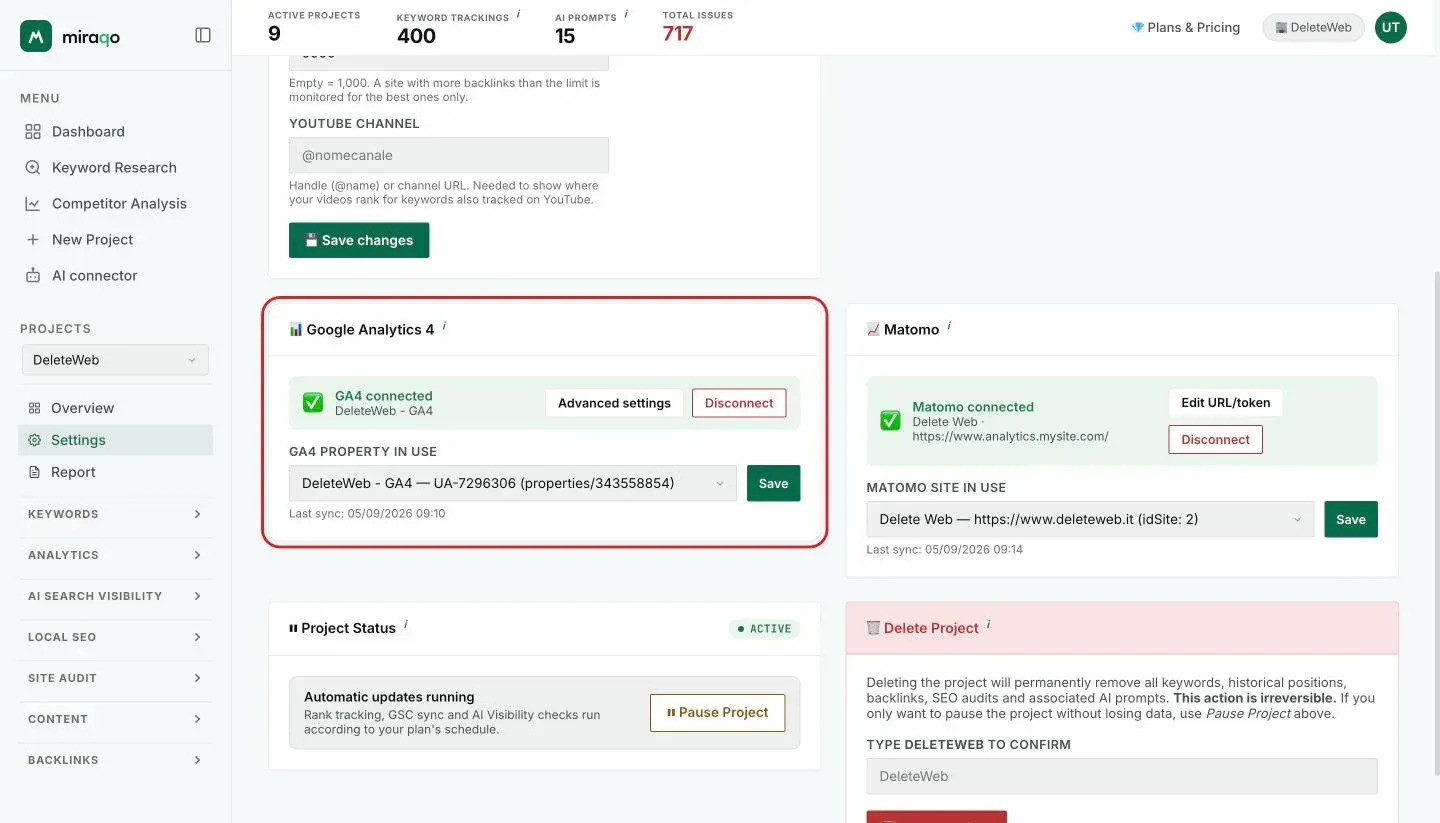
📈 Matomo
Privacy-friendly alternative to GA4: works with self-hosted or cloud Matomo instances. Requires the instance URL and an auth token with read-only permissions on the site to monitor.
When connected:
- Shows the selected Matomo site + your instance URL
- Edit URL/token button to change credentials, Disconnect to unlink
- If the instance has more than one site, a dropdown to switch on the fly
For the complete GA4/Matomo setup see Connect Google Analytics 4 or Matomo.
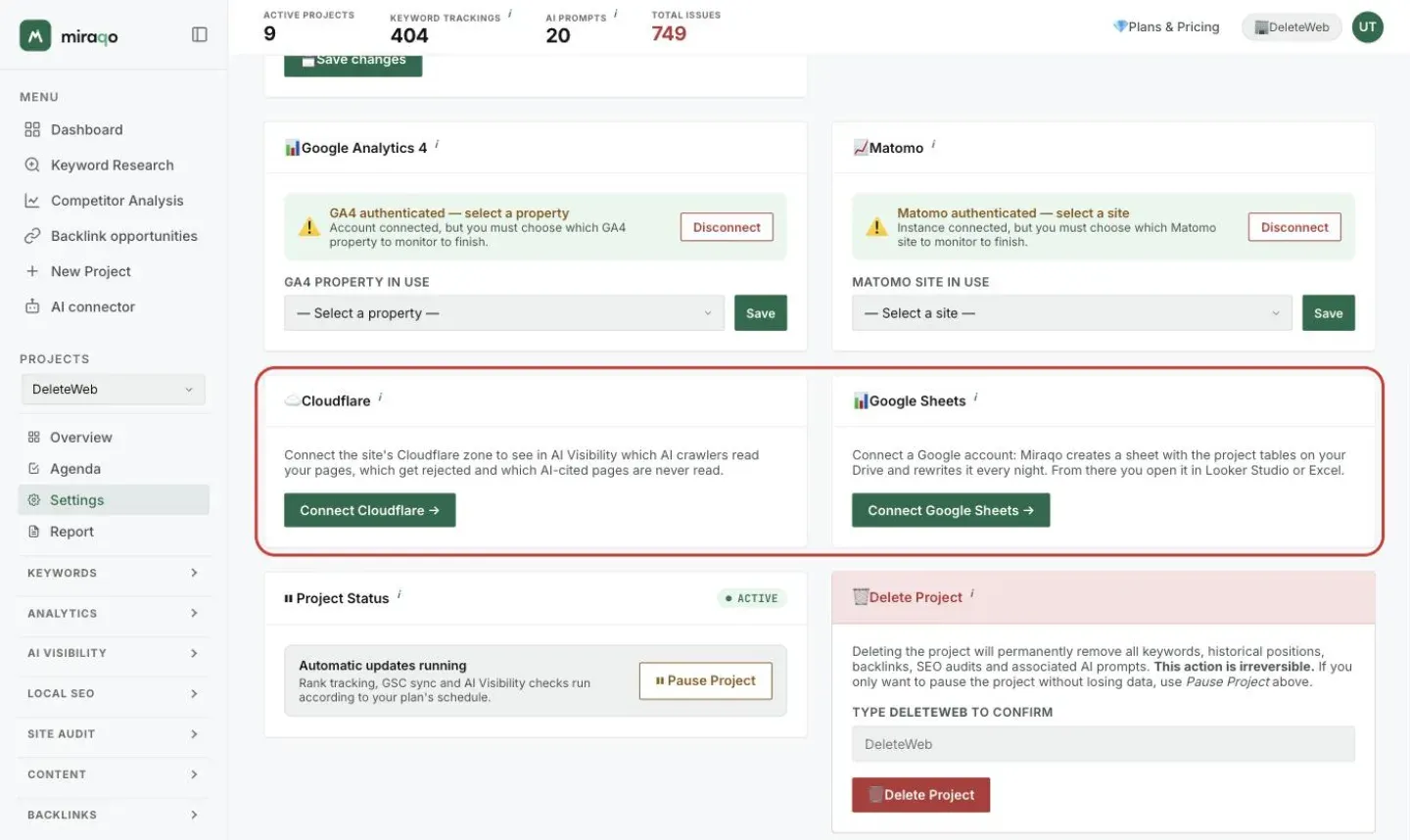
☁️ Cloudflare
If the site runs through Cloudflare, Connect Cloudflare asks for an API token with read-only access to analytics and the zone ID. From then on, AI Visibility shows which AI crawlers read your pages, which get rejected and which AI-cited pages are never read. How to create the token and what the card shows: AI Visibility → AI crawlers on the site.
📊 Google Sheets
Connect Google Sheets asks for access to a Google account: Miraqo creates a sheet with the project tables on your Drive and rewrites it every night, ready for Looker Studio or Excel. Details in Branded reports → Google Sheet for Looker Studio and Excel.
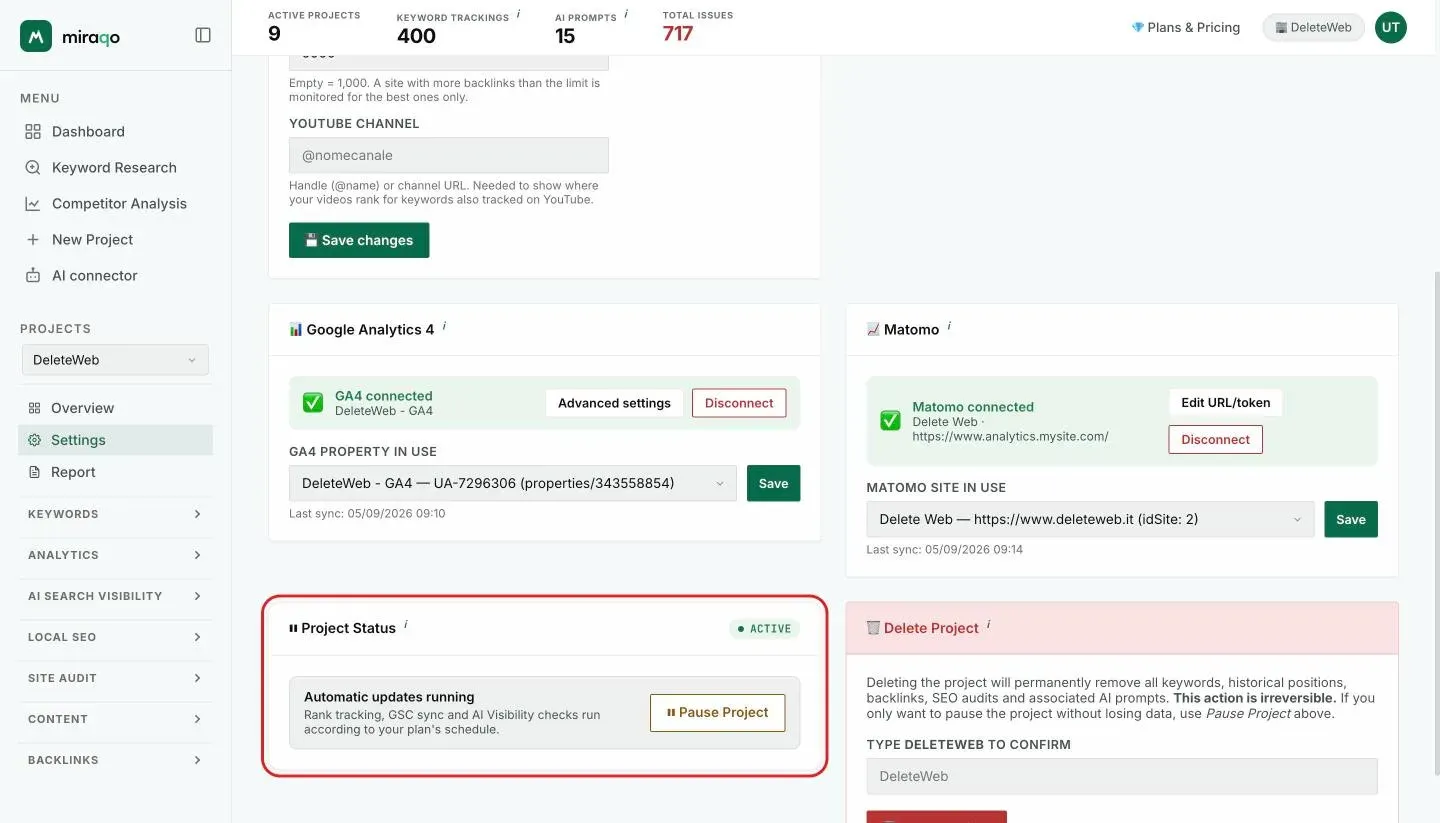
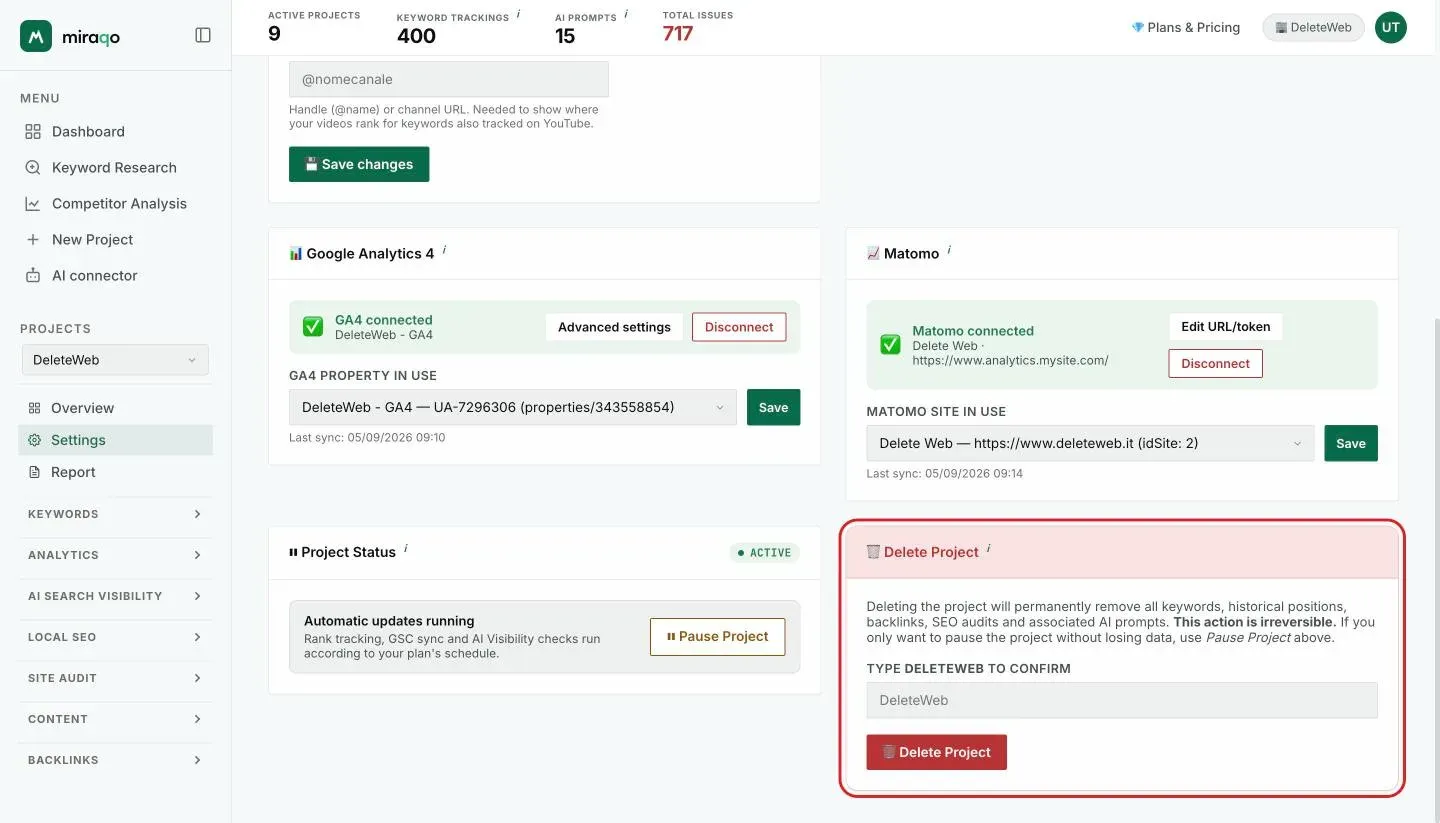
⏸ Project Status
Switch to Suspend / Reactivate the project.
- Active — green pill; rank tracking, AI Visibility checks, scheduled audits, backlink and competitor syncs are run on the plan’s schedule
- Paused — orange pill; data remains viewable, no new check is scheduled and the project no longer counts towards your plan limits: its project slot, keyword trackings, AI Visibility credits and Local SEO points go back to the other projects
While suspended, manually started checks are blocked too — new audit, AI Visibility check, adding keywords and prompts — both from the app and from the AI connector.
Reactivating requires room. On reactivation the project counts towards your limits again: if there is no free project slot, or not enough keyword trackings, AI Visibility credits or Local SEO points for its active keywords and prompts, reactivation is blocked with the list of what is missing. Free up resources, suspend another project or upgrade, then try again.
Useful for putting a project on standby without losing data. Requires confirmation.
What doesn’t stop: the project’s backlinks keep taking up your plan limit; the connected Search Console / Analytics syncs keep running (they’re free and this avoids gaps in your history), and scheduled reports and the weekly digest keep going out — turn them off in their own settings if you don’t want them.
🗑️ Delete Project (danger zone)
Only visible to roles that can delete the project.
Deletion is permanent and irreversible: removes all keywords, historical positions, backlinks, SEO audits and AI prompts associated with the project. For security you need to type the exact project name as confirmation before the button works.
To temporarily stop consumption and free up your plan resources without losing anything, use Pause Project above.
Keywords tab
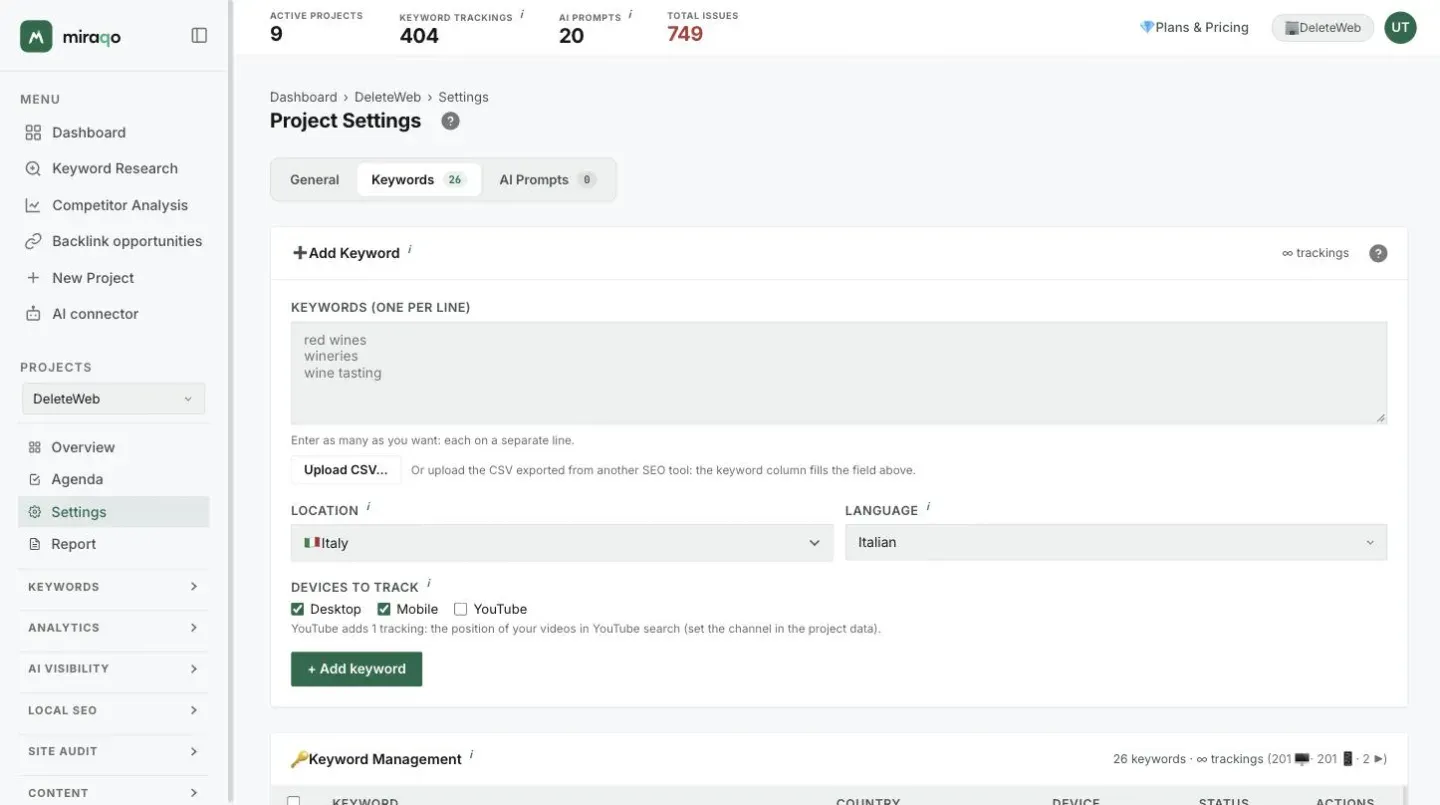
➕ Add Keyword
Inline form:
- Keyword textarea — one per line, as many as you like
- Location — country from which to simulate the search (default: the project’s country). Determines the local SERP (google.com, google.co.uk, etc.)
- Language — Google’s interface language for the query (it/en/de/fr/es)
For the complete procedure and plan limits see Add your first keywords.
🔑 Keyword Management
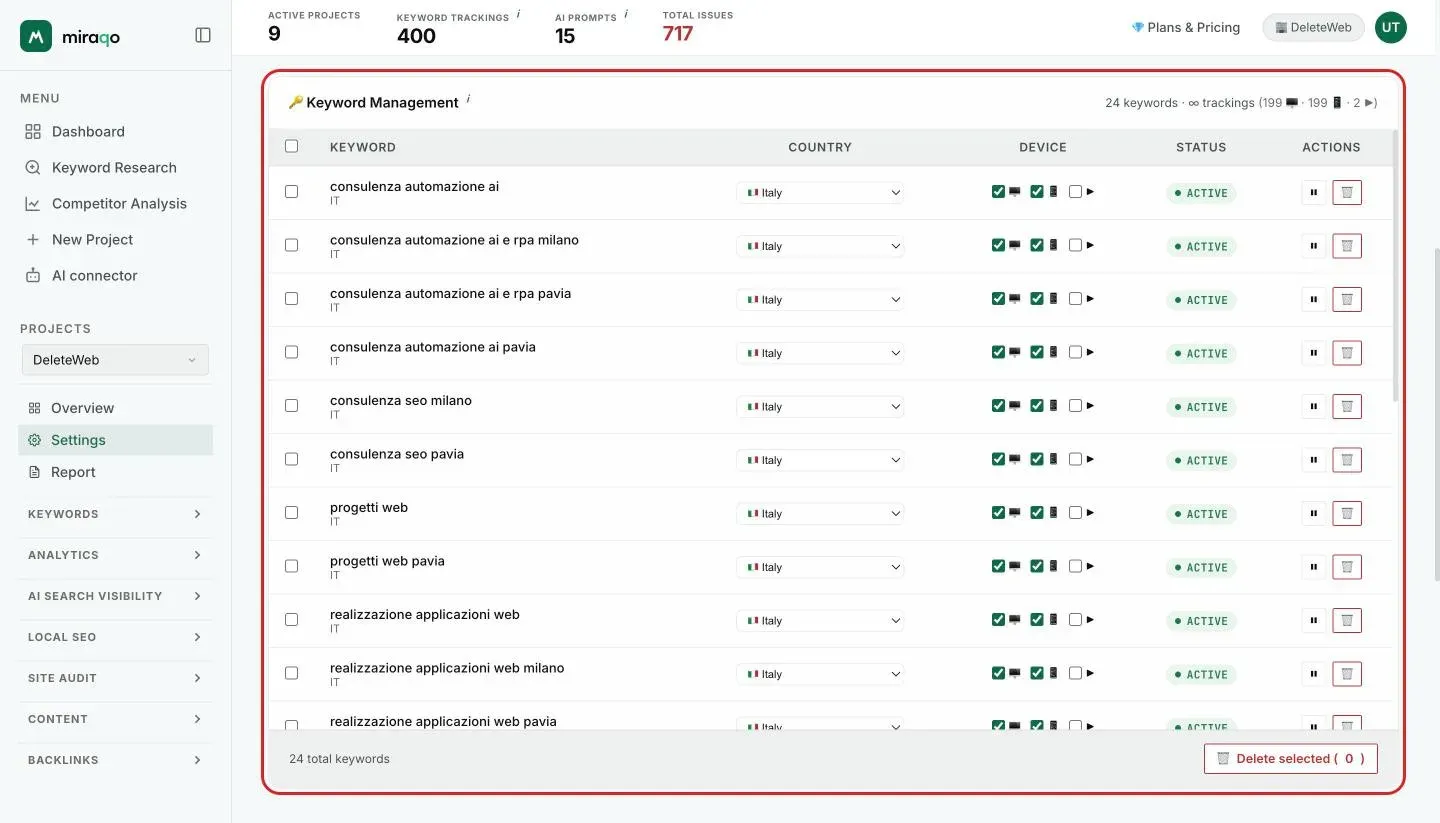
Table of all project keywords:
| Column | Function |
|---|---|
| Checkbox | Multiple selection for bulk deletion |
| Keyword | Text + language code |
| Country | Inline dropdown: change country without reloading the page |
| Status | Active (green) or Inactive (grey) pill |
| Actions | ⏸/▶️ Activate-Deactivate · 🗑 Delete (with confirmation) |
At the bottom: 🗑 Delete selected (N) button for bulk delete.
Deactivating ≠ deleting. An inactive keyword retains its history but is no longer tracked. Deleting removes it permanently; re-entering the same string in tracking reserves a slot occupied for 30 days even after removal (anti-abuse).
💡 Suggested by Google Search Console
Collapsible panel at the bottom of the tab (visible only if GSC is connected). Contains your users’ real queries from the last 28 days that bring traffic but aren’t yet tracked, with clicks and impressions. Each row has an + Add button that immediately puts it into tracking with the default country/language.
If GSC isn’t connected, the panel appears but empty, with a link to the General tab to connect it.
AI Prompts tab
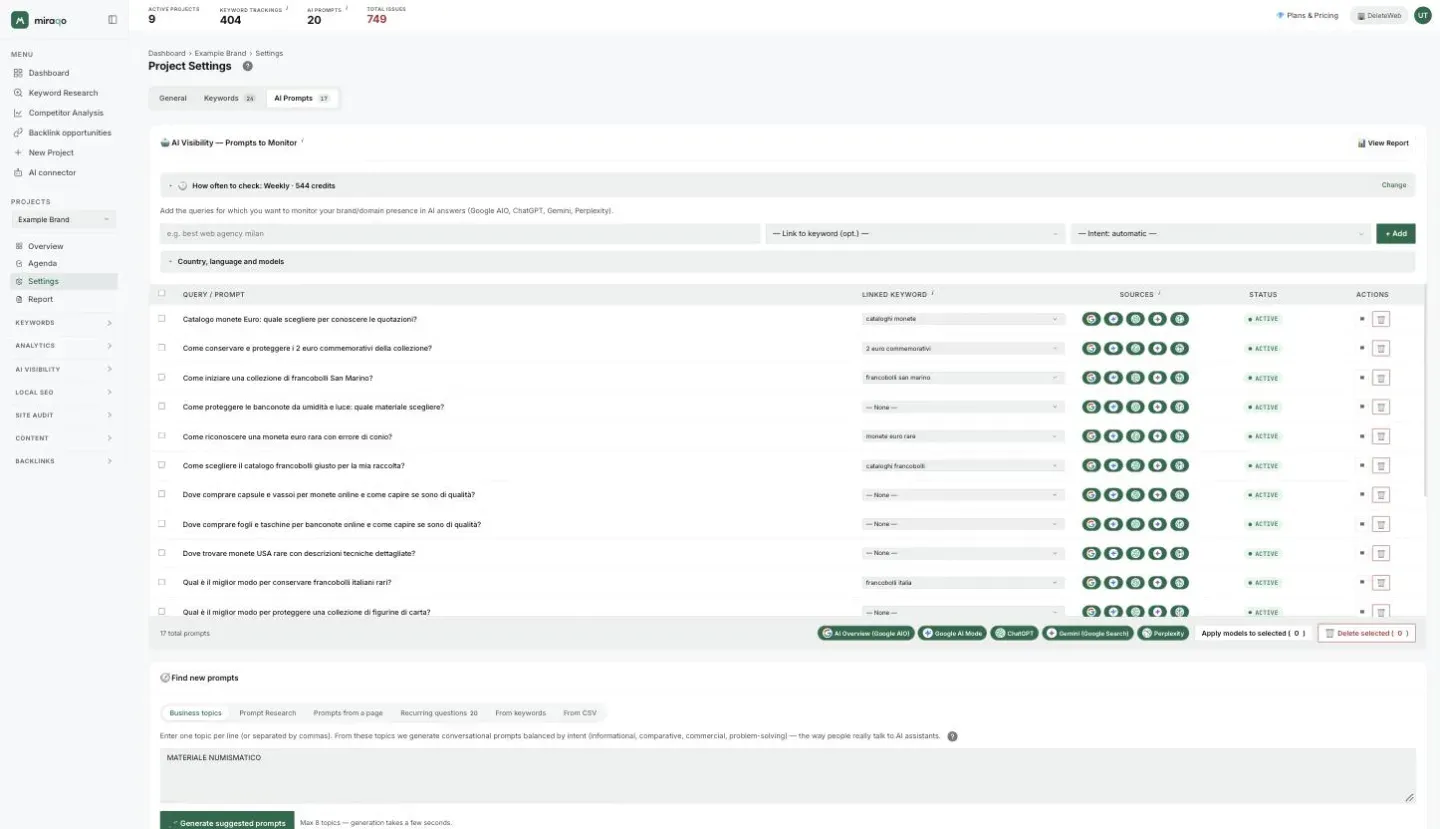
Here you configure the conversational queries that Miraqo periodically re-sends to AI models to check whether your brand is mentioned or cited as a source. These are different from keywords: they’re natural prompts, not short searches. See also Add AI Visibility prompts.
Top right the 📊 View Report button goes directly to the AI Visibility report.
How the tab is organised
The tab has three cards, from the top:
| Card | What it’s for |
|---|---|
| 🤖 Prompts to Monitor | The main card: at the top, the 🕑 How often to check row with the current frequency and its credit cost (Change opens the four options: monthly, every 2 weeks, weekly, every 3 days, confirmed with Save frequency), then the add form and the prompts table |
| ✨ Suggested prompts | Only appears when there are candidates to approve: the ones generated by the tabs below or imported from CSV, grouped by intent. ✨ keyword + volume badge on candidates leaning on a keyword where the AI Overview really appears |
| 🧭 Find new prompts | All the ways to find new prompts, one per tab (see below) |
The tabs of Find new prompts:
| Tab | What it’s for |
|---|---|
| Business topics | 3–8 themes your business covers → 🪄 Generate suggested prompts. With Search Console connected, ✨ Suggest topics from GSC data proposes them from your real queries |
| Prompt Research | From a single seed topic, the full map of questions (direct, comparisons, objections, follow-ups), anchored to monitored keywords and GSC queries |
| Prompts from a page | Paste the URL of a project page (+ optional intent) and get the prompts that page answers better than a generic one. Your own domain only |
| Recurring questions | Related questions that emerged from responses already collected, with + Add promoting them on all 5 sources. The first 5 are shown; Show all opens the rest |
| From keywords | Only without Search Console connected: 8 prompts suggested from the project’s keywords |
| From CSV | Import prompts from another tool’s CSV: they land in Suggested prompts, where you choose the models before activating them |
The tab you open stays selected next time. The first three tabs consume the monthly AI generators budget, not AI Visibility credits. Details in Business topics — generating AI prompts.
➕ Adding a prompt
Inline form:
- Query — the prompt to monitor (e.g. “best web agency london”)
- Link to keyword (optional) — associates the prompt with a project keyword. Used to correlate SEO positions with AI visibility in reports.
- Intent (optional) — if you don’t pick one, Miraqo infers it from the prompt text.
Below the form, Country, language and models opens the options already set on the project: change them only if you need to.
- Country and language — the prompt’s market, if different from the project’s.
- Sources — five toggles to choose where to check the prompt, each with its weight in credits:
- AI Overview (Google AIO) — 1
- AI Mode (Google) — 1
- Perplexity — 2
- Gemini — 2
- ChatGPT — 2
When selecting candidates from the ✨ Suggested prompts card you also choose the models before adding, with the cost (“N credits per prompt · M in total”) updating as you tick.
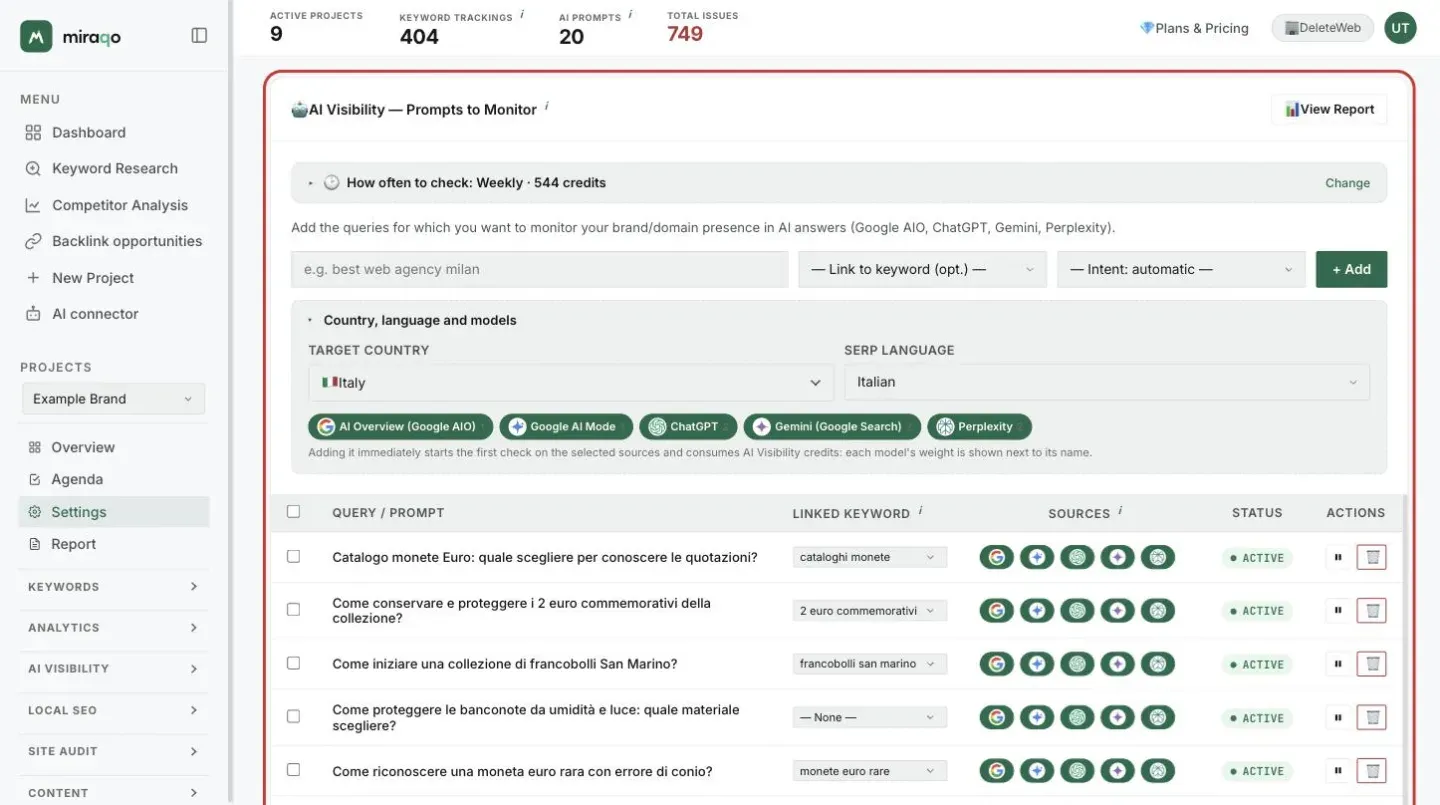
📋 Monitored prompts table
| Column | Function |
|---|---|
| Checkbox | Multiple selection for bulk deletion |
| Query / Prompt | Query text |
| Linked keyword | Inline dropdown: associate/delink a project keyword on the fly |
| Sources | Five toggles (AI Overview / AI Mode / ChatGPT / Gemini / Perplexity). Change the ticks and confirm with the Save button that appears next to them. At least one source must remain active |
| Status | Active or Inactive pill |
| Actions | ⏸/▶️ Activate-Deactivate · 🗑 Delete (with confirmation) |
At the bottom: bulk delete of selected rows.
Activating a model starts a check right away on that model only: without it, it would stay without data until the scheduler’s window (up to 15 days on a monthly cadence). The ticks are saved with the Save button for exactly this reason — a stray click would change a prompt’s models, and therefore its credits.
The plan’s AI Visibility budget is expressed in credits (Solo 120, Starter 280, Pro 680, Agency 1680), not in number of prompts: how many prompts fit depends on the models you activate. See AI Visibility — report and prompts for details.
Exporting and sharing
The project’s PDF is generated from the Report page (project sidebar): the Generate tab to download it right away, Scheduling for automatic delivery. For complete branded reports (client logo, configurable sections, scheduling) see Creating branded reports.
Last updated: 30 September 2026